 Renan Araujo
Ever since running my first Flutter app on an Android device and an iPhone, I can’t help but wonder whenever I see a device with a display: Can this run Flutter?
It is all speculation until one goes deep into a device’s specifications to see whether the hardware can handle it. Of all the devices out there, those powered by Android-based operating systems will most likely run a Flutter application without too much hassle. That is precisely the case for Wear OS.
After spending some time on experimentation, and finally shipping a real Wear OS game, I learned how to make Flutter run on anyone’s wrist, which raised a few questions that I had to answer. Questions such as:
Part 1: the idea
Before starting, you may want to prepare a device to debug your application. You can read about how to create a watch emulator or how to debug it on a physical device).
It is important to notice that any Wear OS app is essentially just an Android app. So, to run Flutter on a Wear OS device (or emulator), we need to adjust some files under the android directory. Besides that, on the Flutter side of things, we must adapt the UI for the small screens and get some useful information from the hardware. Now that the objectives are clear, let us build something!
In this tutorial, we will build a counter app (just like very_good_core) that:
- Has a basic dark UI (to save some energy on OLED devices)
- Adapts its colours for when the watch goes on ambient mode
- The user can use the rotary input to interact with the app’s functionality
...
@override
Widget build(BuildContext context) {
  return MaterialApp(
    theme: ThemeData(
			visualDensity: VisualDensity.compact,
...Enabling watch support
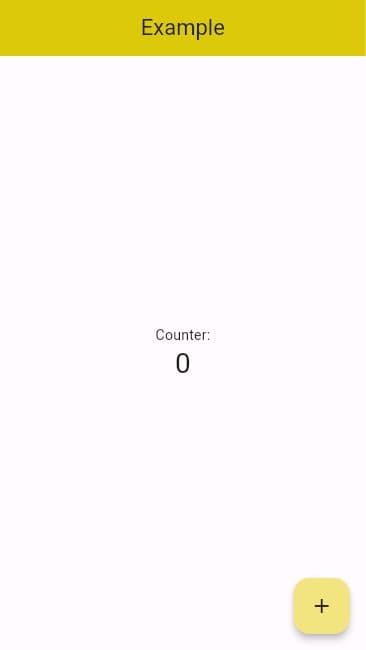
So far, so good, so easy. We have a Flutter app that looks and feels like it is made for smartwatches. But how do we release this so the world can download it directly onto their watches? As expected, Wear OS apps are distributed via the Google Play Store (Samsung devices may use the Galaxy Store too).
There are some specific parts that need special attention to avoid a version rejection.
Part 2: something
This automatically sets up widgets like buttons and menus to have fewer pixels for padding and general spacing. I recommend using Material 3 since it is more visually compatible with most of the Wear OS 3’s system UI.
Also, I advise using dark backgrounds. Since most watches have dark bezels on OLED screens, this will help save some battery and will blend nicely on devices like the Pixel Watch.